The tap disconnects; it doesn’t fully switch Wi‑Fi off
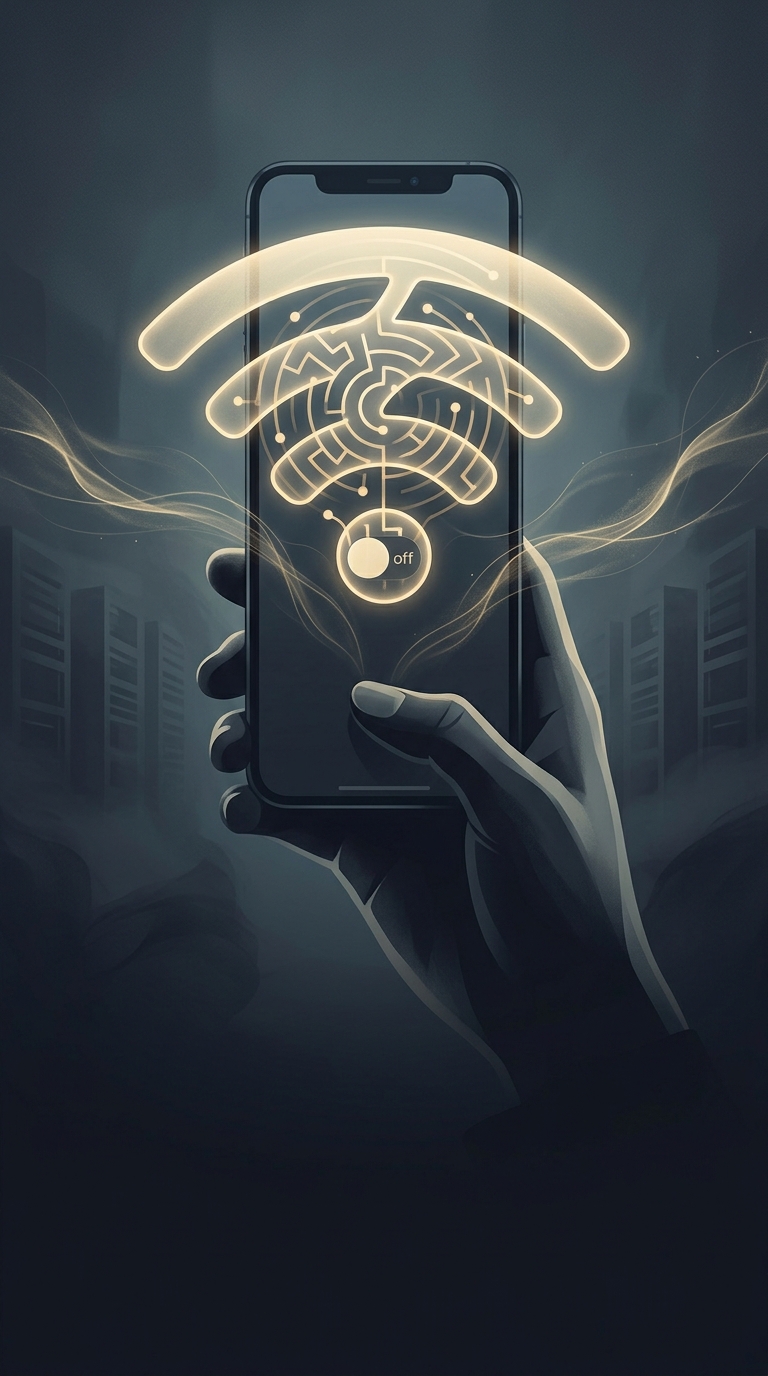
On a modern iPhone, tapping the Wi‑Fi button in Control Center usually disconnects the phone from its current Wi‑Fi network. It does not shut down the Wi‑Fi hardware completely. The icon changes to show that you’re disconnected, but the phone can still use Wi‑Fi for nearby features such as AirDrop and AirPlay.
That distinction is why the control can feel less final than its name or appearance suggests: it is mainly a quick way to leave a network, not a master power switch for every Wi‑Fi function.
What happens to your internet connection
If cellular service is available, the iPhone can use mobile data instead. Apps may keep working, so the change can be easy to miss—but streaming, downloads, and other activity may then count against your cellular plan. If cellular data is unavailable or turned off, internet-dependent apps may lose their connection until Wi‑Fi is restored.
The phone may reconnect to Wi‑Fi later, for example after you turn Wi‑Fi back on in Control Center, join a network in Settings, move to a different location, or restart the iPhone. So a Control Center tap is best understood as a temporary disconnection, not a promise that Wi‑Fi will stay unavailable.
For a complete shutdown, use Settings
To turn off Wi‑Fi itself, open Settings > Wi‑Fi and switch it off. That disables Wi‑Fi more completely; you can return to the same screen to turn it on again. The practical difference matters when you’re troubleshooting a connection or trying to ensure the phone won’t use Wi‑Fi: Control Center drops the current link, while Settings disables the connection technology.